
How to Use Neighbor Letters to Sell Land
When you’re selling land, the most motivated buyers are often the people who already own property nearby. Neighbor letters help you reach those local owners directly with a personalized message, property visuals, and a clear next step.
In Land Portal, you can quickly identify nearby owners on the map, build a targeted mailing list, and send handwritten-style letters with a trackable QR code, so you can generate interest and capture leads without guessing who to contact.
Step-by-step walkthrough
- Login to Land Portal if you haven't already.
- Search or Zoom in on an area you'd like to target for your mail campaign.
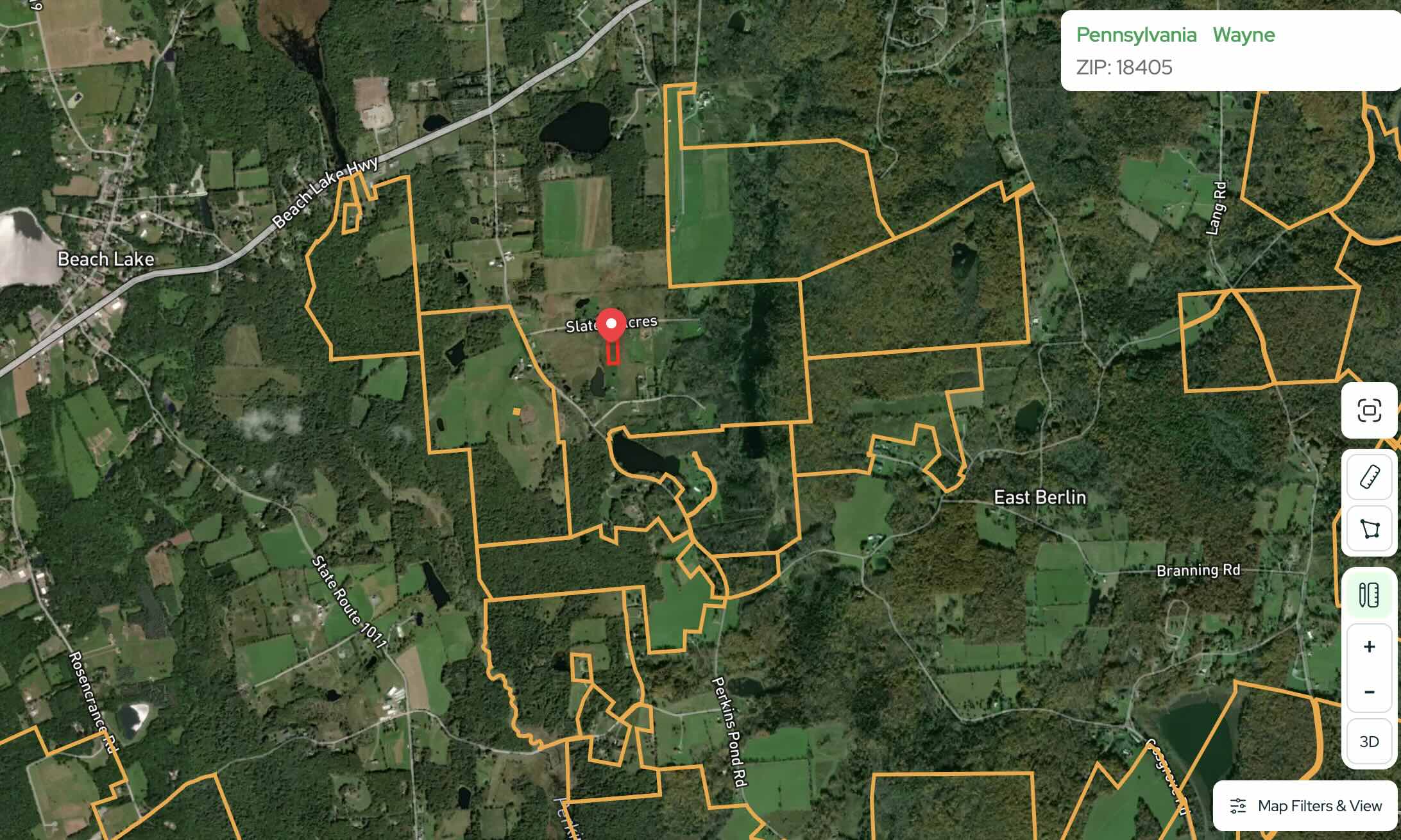
- In Filtered Search, select the Polygon tool
Draw a shape around the area surrounding your property (not too large, start tight and expand if needed) to keep your list focused on a few counties.
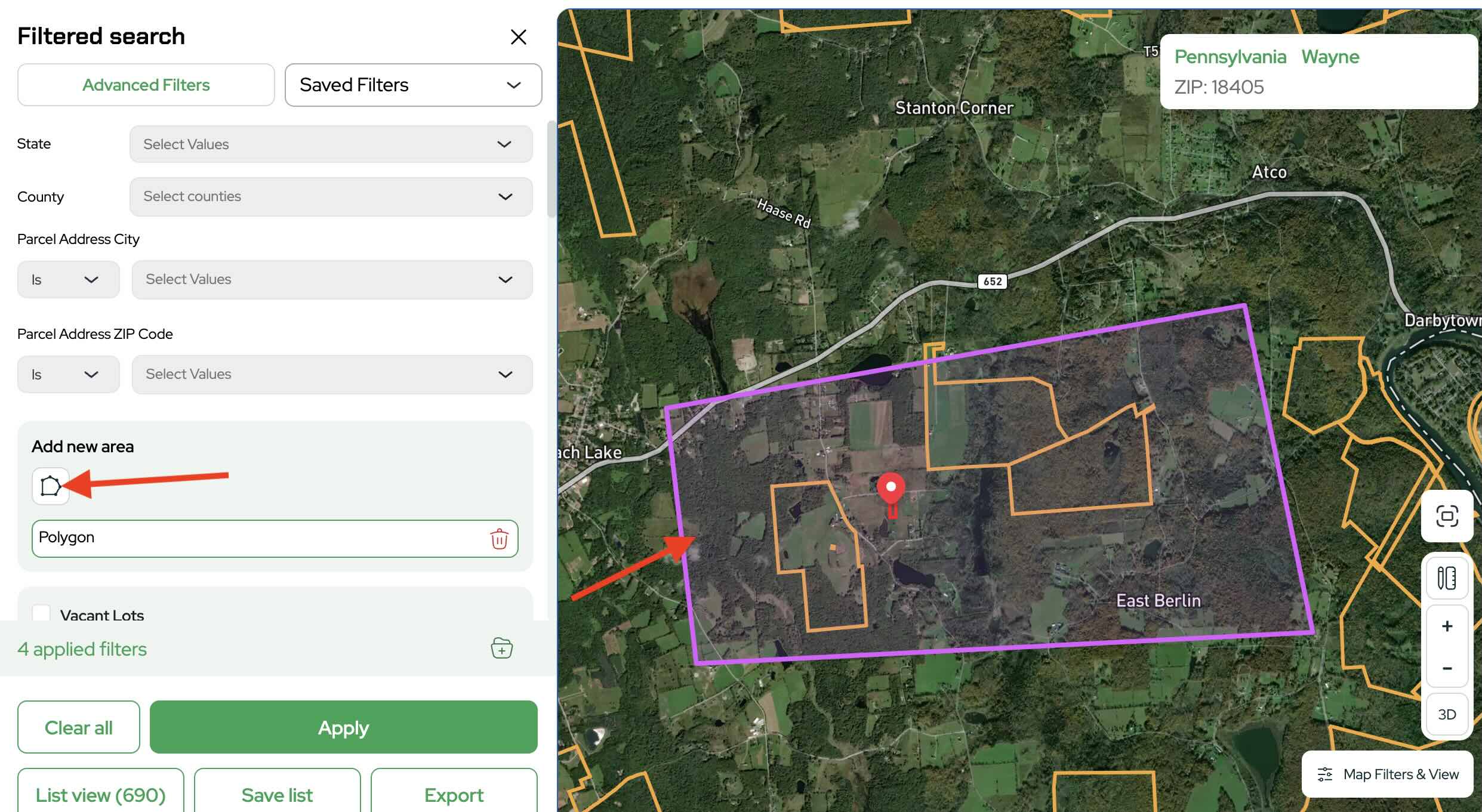
- Set Property Type to Residential Lots (a common starting point for neighbor letters) so you’re targeting owners who already hold land.

- Filter by Acres (start with something like 1–8 acres, then adjust if needed).

Click Apply and review the number of properties returned.
- Save the results to a new list
Click Save to List.

Choose Create New List.
Name the list something clear like “[County] Neighbor Letters” and save it.

- Start your mailing
You can begin mailing from multiple places (map search, a property, exporting, or your saved search), but a simple route is:
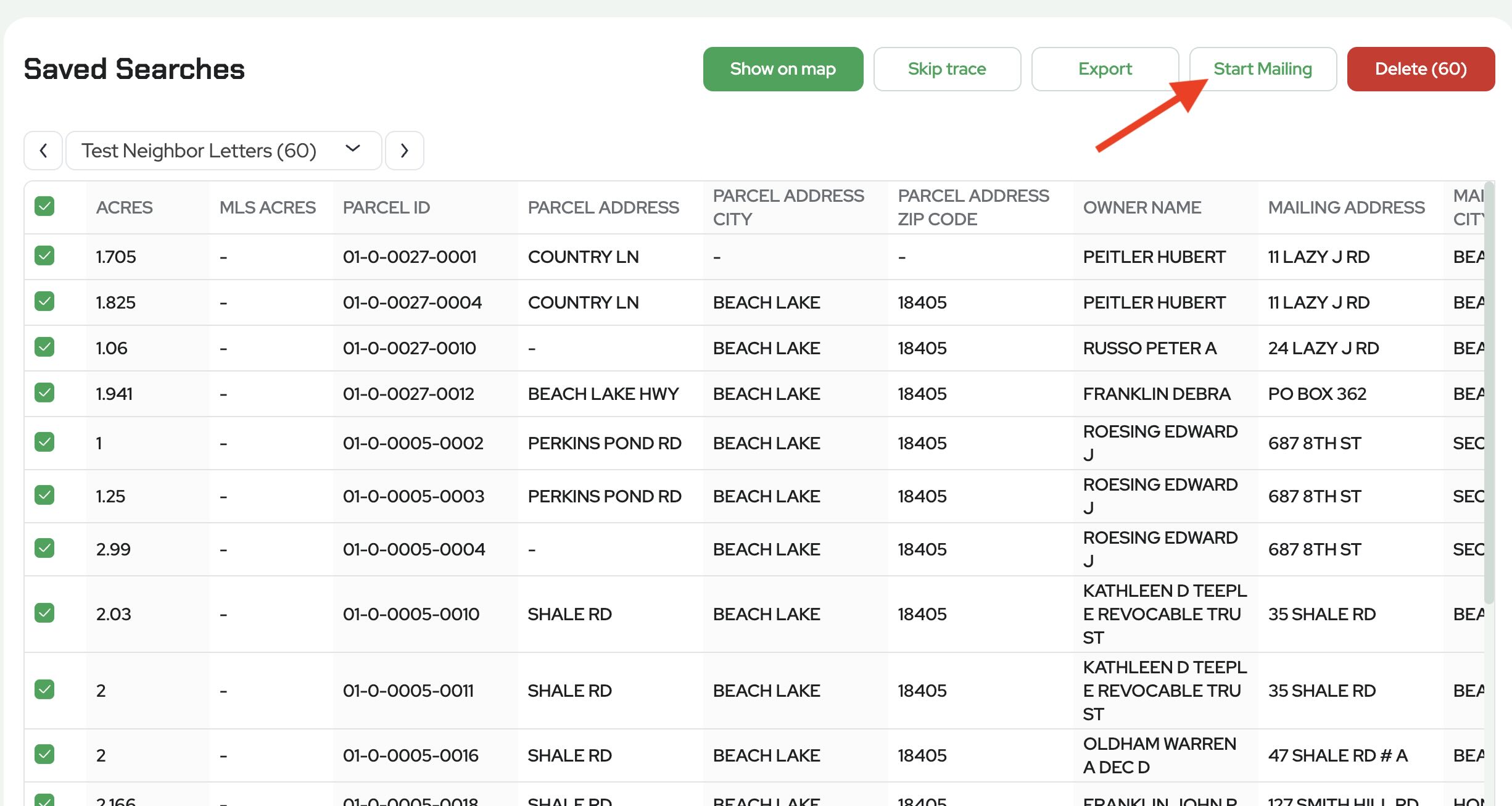
Go to your Saved List.

Click Start Mailing and proceed to the campaign setup.
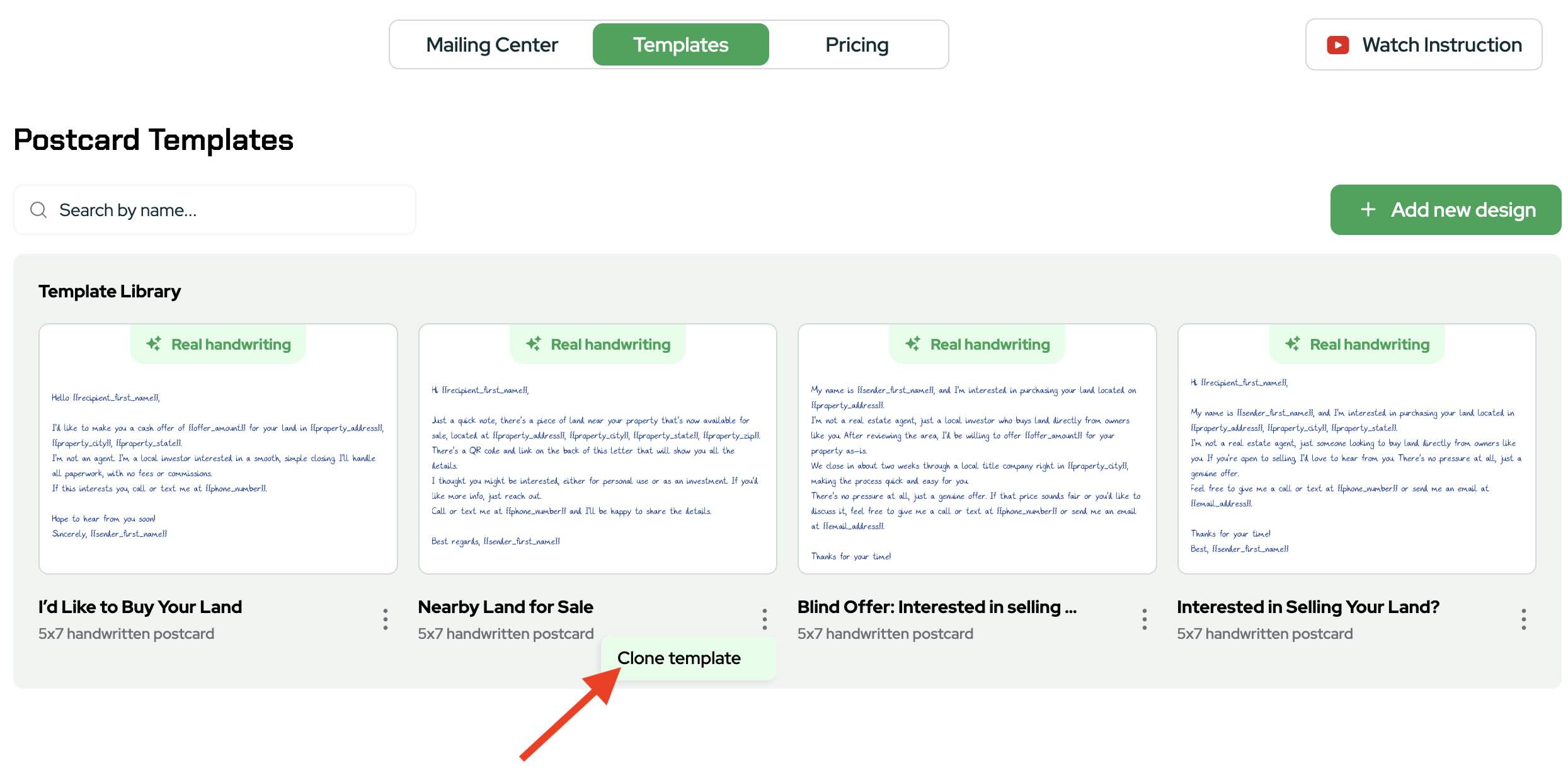
- Choose a template and clone it to customize
Open the Templates tab.
Pick a template that fits neighbor outreach (example used: Nearby Land for Sale) .
Click Clone and rename it (example: “[Property Name] Neighbor Letter”) so you can edit without changing the original.
- Clean your list and confirm field mapping
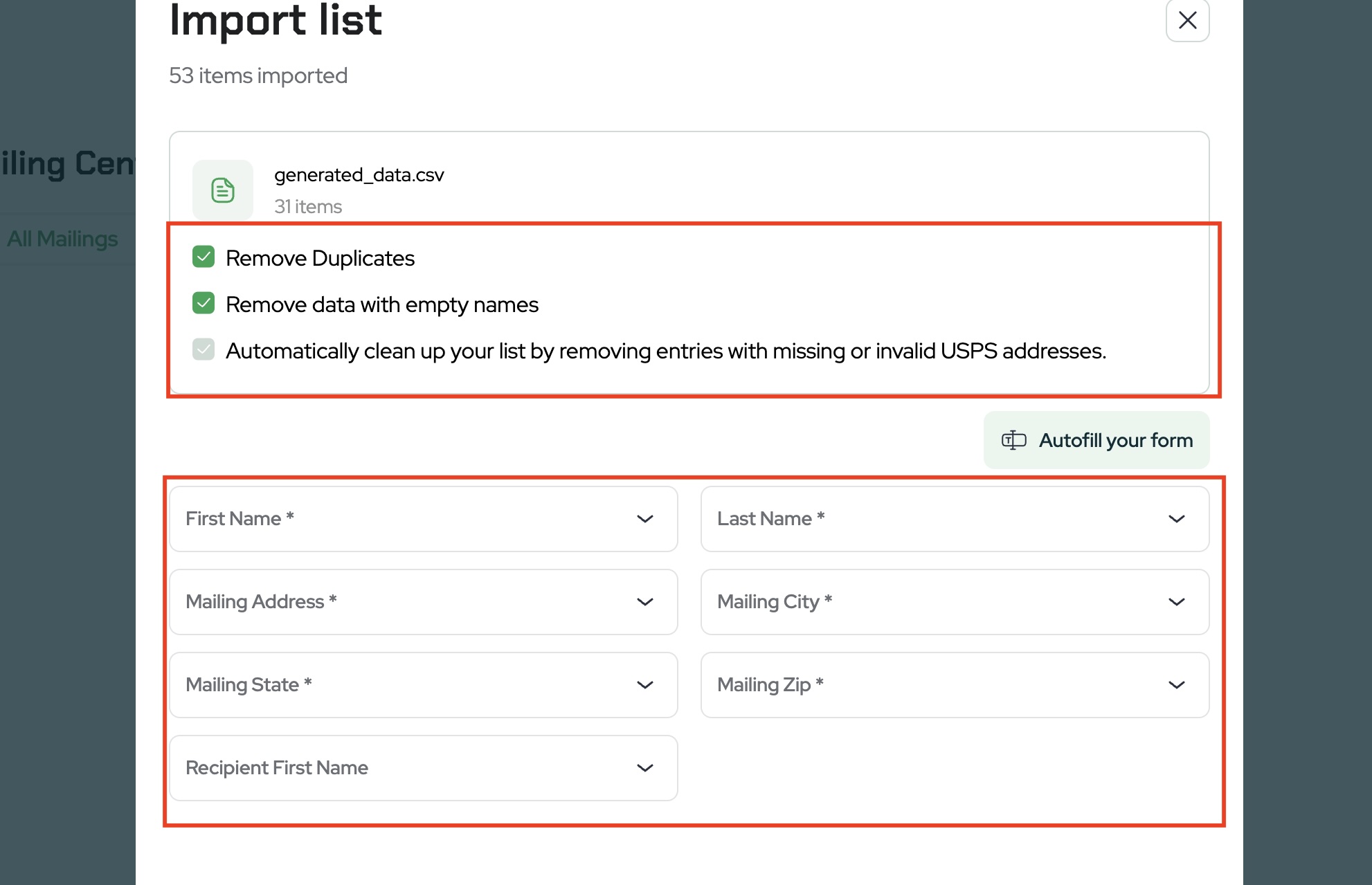
After selecting a template, Land Portal prompts you to review your list.
- Confirm Remove Duplicates to ensure each owner receives only one letter.
- Remove entries with missing names.
- (Optional) Automatically clean records with invalid or missing USPS addresses.
- Review and confirm how your list fields map to the required mailing fields (first name, last name, address, city, state, and zip).
Feel free to use Autofill form, but always double-check that they are mapped how you want before continuing.
Once complete, click Continue to begin customizing your letter.
- Write the inside message (with merge fields)
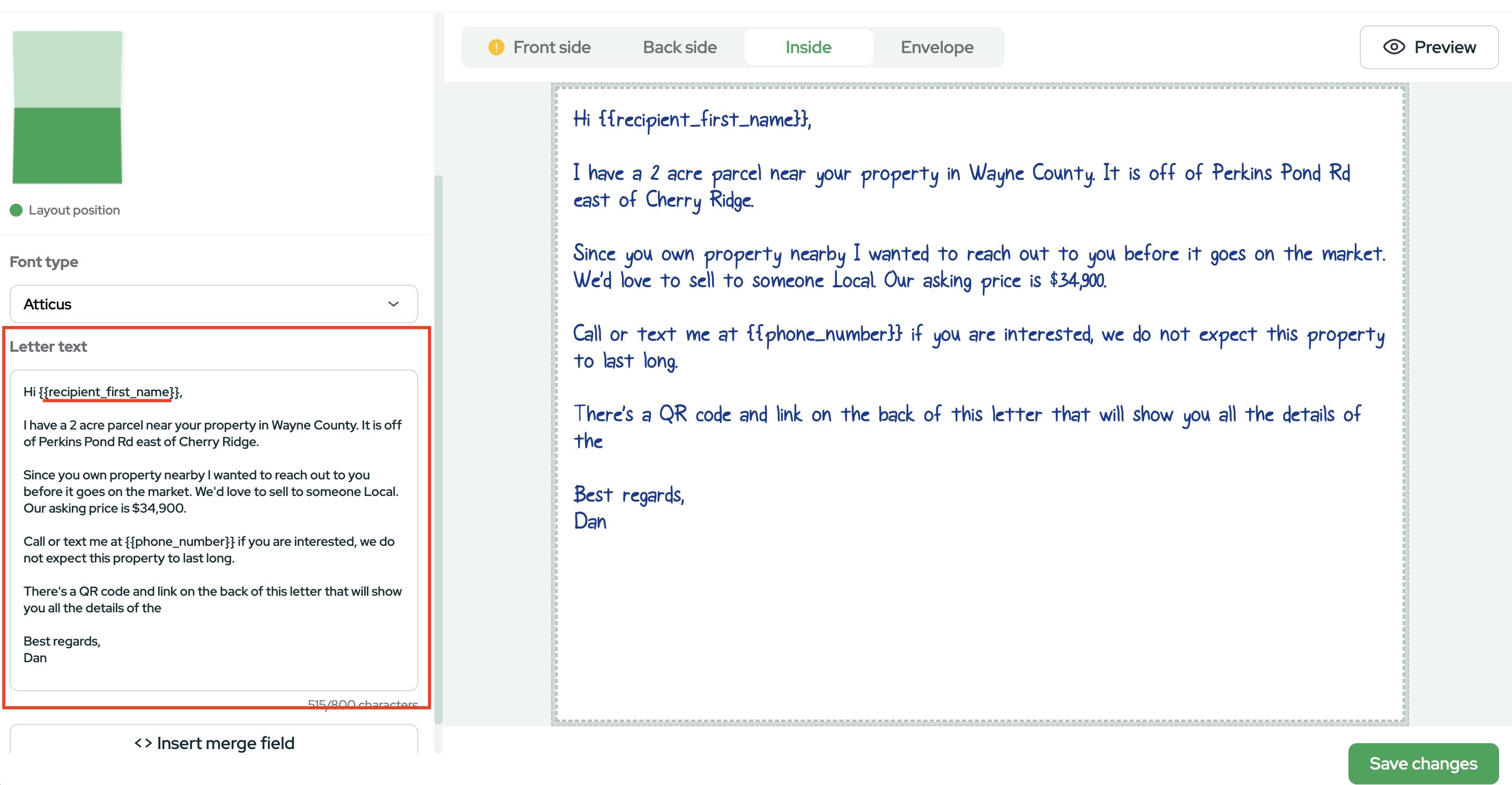
Edit the Inside text.
Include:
- A short “why I’m contacting you” (they own nearby property)
- The location description (road/area name feels personal)
- Price (asking or listing)
- A clear call to call/text
- A light urgency line (not overly salesy)
Pro-tip: Insert merge fields like First Name for more personalization.
- Add a QR code on the back (and choose the destination)
Go to the Back side tab.
Add your QR code and set the destination URL (example used a listing page) .
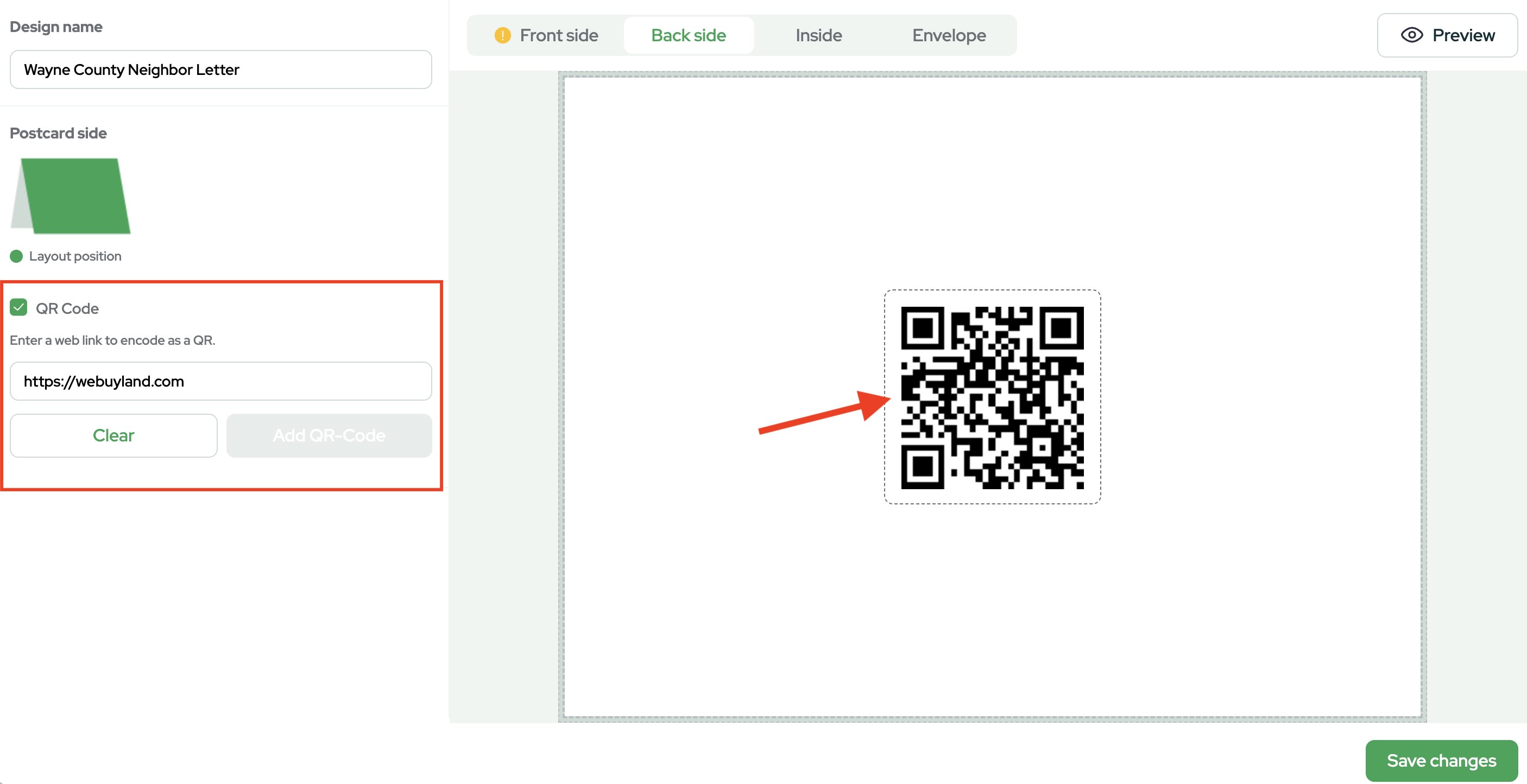
Why this matters: In the video example, scanning the QR code can trigger a notification to the sender, turning scans into trackable leads so you know who’s engaging even if they don’t call right away.
- Build the front design with property visuals
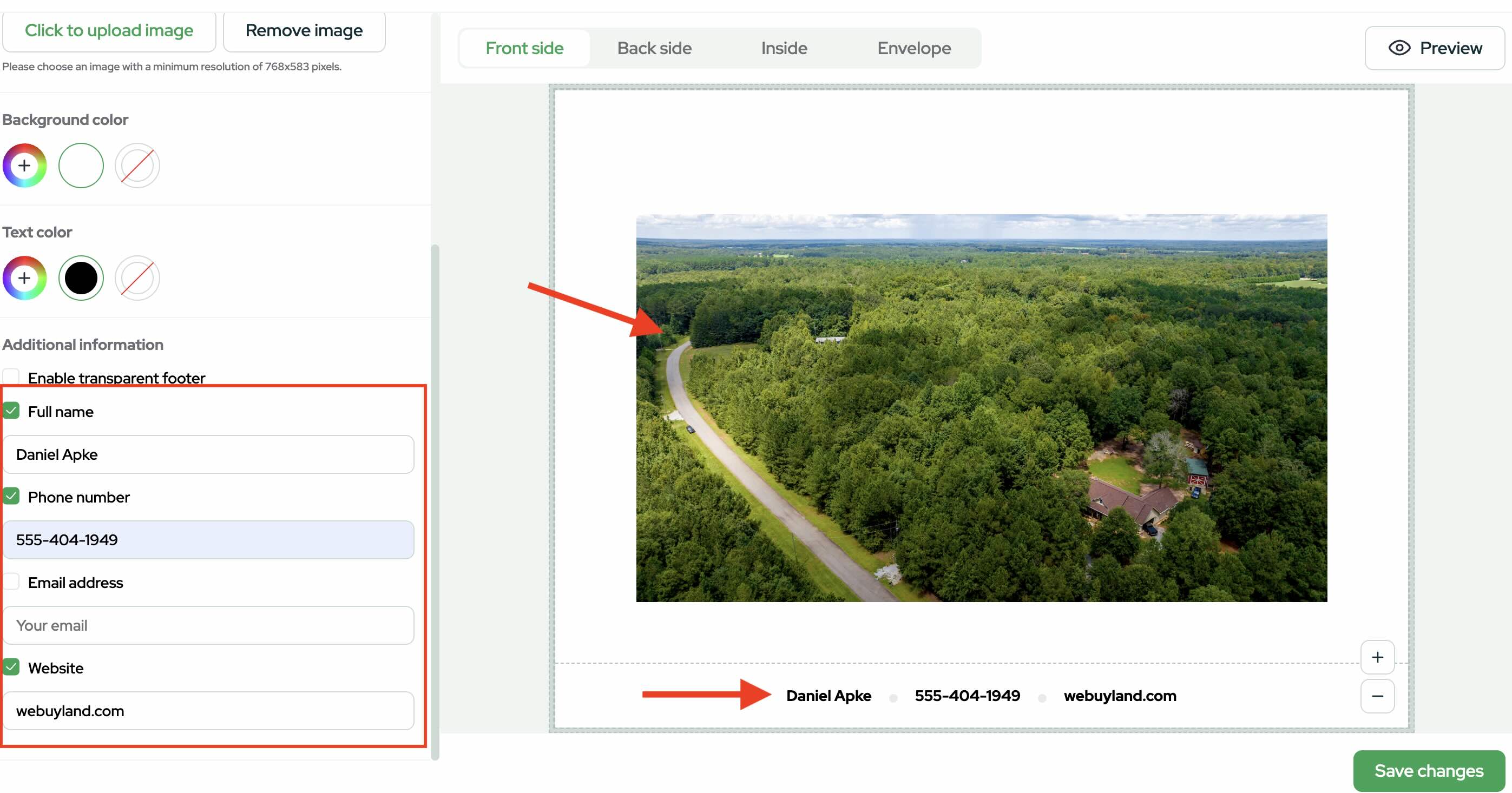
Go to the Front section.
Add a strong property image (drone shots work great) .
- Review the envelope and handwritten settings
Open the Envelope preview.
Confirm Sender and Recipient info
This is also where you select the Mailing Class (Standard or First-Class).
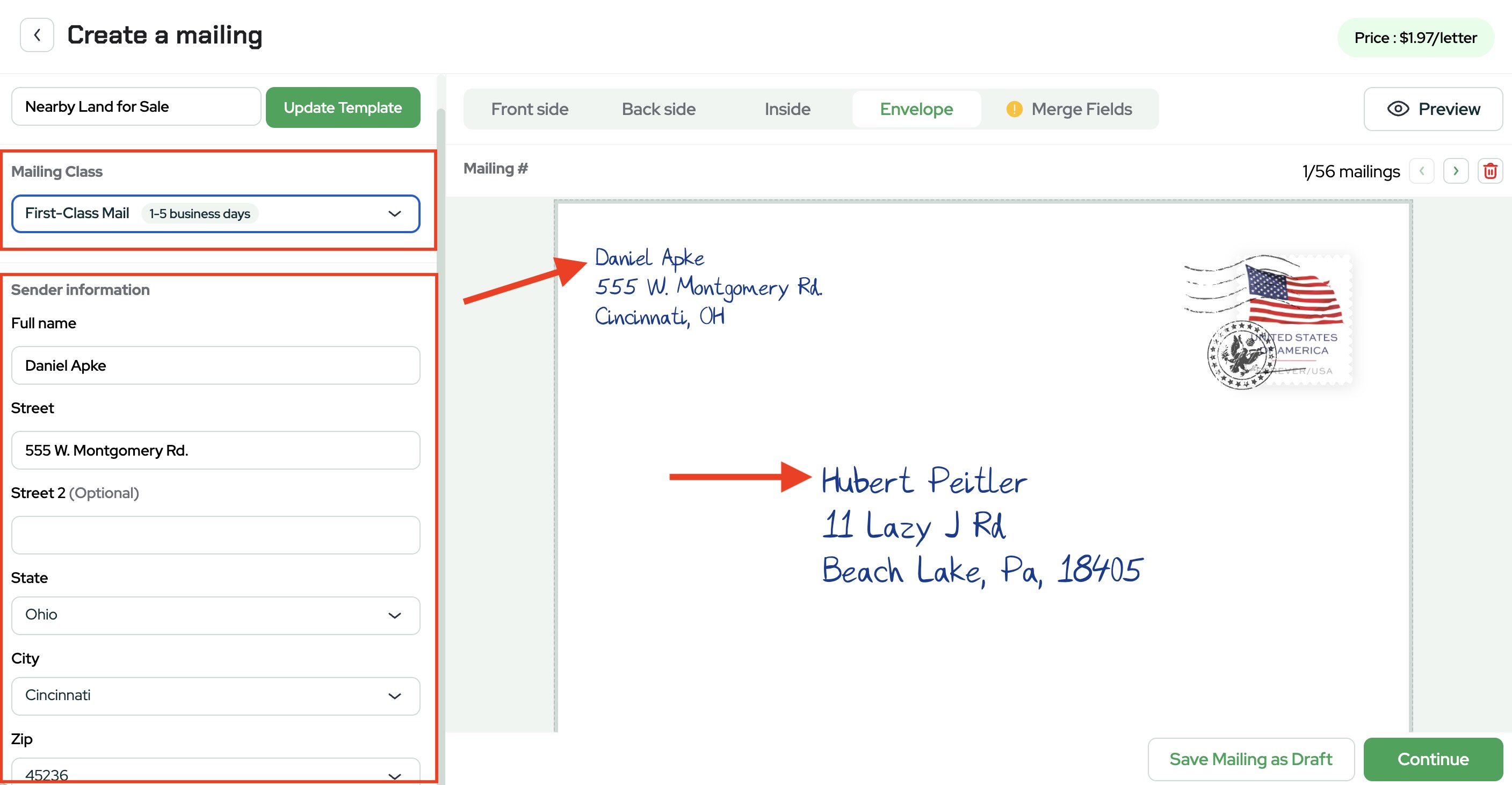
Click Continue when ready.
- Save as a draft or send
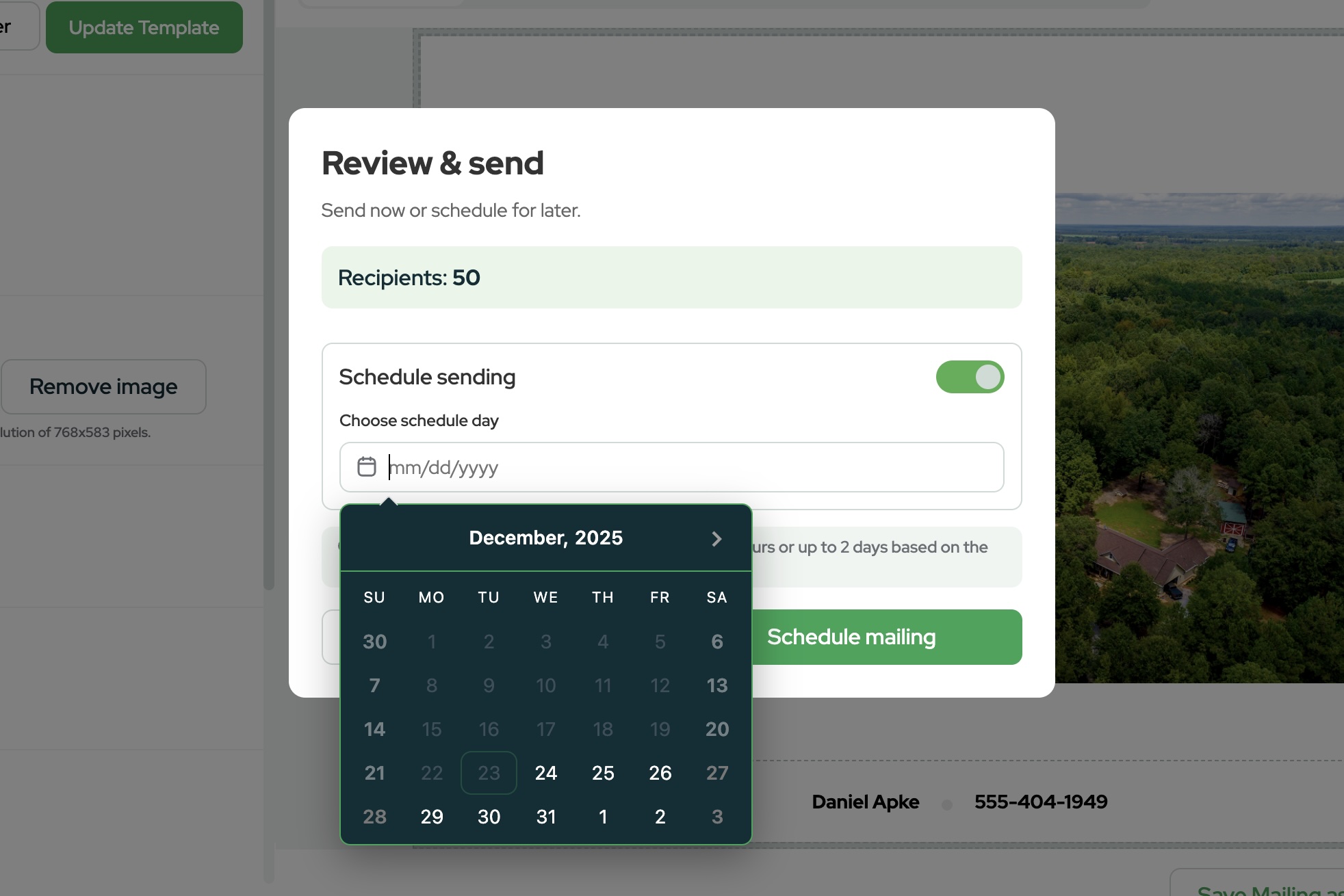
If you’re not ready, click Save Mailing as Draft .
Click Schedule mail or click Send now.
Review and place your order.
Neighbor letters are a practical, repeatable way to sell land faster by contacting the owners most likely to care, nearby neighbors who already have a stake in the area.
With Land Portal, you can draw your target radius, filter for the right owners, remove duplicates, add a trackable QR code, and launch a polished mail campaign from one place.
Ready to try it? Log in to Land Portal and start building your first neighbor letter list today.