
3 Ways to Evaluate Slope on Land Portal
When buying, flipping, or developing land, understanding slope is critical.
A parcel that appears flat from satellite view may actually contain significant elevation changes that impact buildability, drainage, foundation costs, driveway access, and overall feasibility.
Evaluating slope properly helps you avoid costly surprises and identify properties that truly fit your investment strategy.
In the video above, we walk through three ways to evaluate slope directly inside Land Portal. Below is a detailed guide you can follow using the same tools demonstrated in the video.
Method 1: Contour Lines
Contour lines are the traditional way to evaluate elevation changes and should always be your starting point.
- Log in to Land Portal
-
Pull Up a Property
Use Map Search, or navigate to your desired parcel.
Click directly on the property to open the Property Card.

- Open Map Filters
In the bottom-right corner of the map, click the Map Filters button.
Enable “Contour Lines”
Turn on the Contour Lines map filter to display elevation markings across the parcel.

Analyze the spacing of the lines and elevation numbers.
- Lines that are far apart generally indicate flatter areas.
- Lines that are close together indicate steeper terrain.
Watch the elevation numbers (for example 1740, 1760, 1780) to determine how much height changes across the parcel.

What to Look For:
- Broad areas with minimal contour variation
- Sharp elevation jumps over short distances
- Possible flat build zones near road frontage
Contour lines provide a strong first impression of terrain, but they do not always capture subtle grade changes. That’s where 3D view becomes important.
Method 2: 3D Map View
The 3D Map allows you to visually inspect terrain and better understand how elevation changes across the parcel.
- Open the same property on the map
Click the “3D” button in the bottom-right corner.
Allow the map to render.

- Rotate and tilt the view
Click and drag to rotate the parcel and adjust the viewing angle to examine elevation changes from different perspectives.

- Compare with contour lines if needed
Toggle contour lines on and off to cross-reference what you are seeing.

What to Look For:
- Drop-offs from the road
- Hidden slopes not obvious from contour spacing
- Ridges or natural ledges that may serve as build sites
- Terrain that appears steeper than initially expected
3D view often reveals slope changes that contour lines alone do not clearly communicate.
However, both methods still require manual interpretation.
For more precise analysis, use Land Portal’s AI Slope Report.
Method 3: AI Slope Evaluator (Buildability Clusters)
Land Portal’s AI Slope Report analyzes every portion of the parcel and identifies clusters of potential buildability.
Instead of simply showing elevation, it highlights grouped areas where building is most feasible.
- Scroll to the “Slope Analysis” section on the Property Card
Here you will see estimated buildable acreage, buildable percentage, average slope, and a breakdown of slope grades.
Click “Show Buildability”
Colored clusters will appear on the map representing areas identified as potentially buildable.

Clusters show where the AI believes building is most feasible. Areas outside clusters are considered less suitable due to slope severity.
- Generate the full AI Slope Report for deeper insight
Click Reports at the top of the property card, select AI Slope Report, and send the request.

- Open the AI Slope Report
Click Comp Reports from the main menu.
View the report directly inside Land Portal or Download as PDF.
Note: Some tools and filters are only available on certain plans. See Plans & Pricing for what’s included in your subscription.

- Review the detailed report
The report includes terrain elevation heat maps, slope classification overlays, individual cluster breakdowns, acreage per cluster, and percentage of flat area within each cluster.

A summary of total acreage, elevation range, average slope, and the percentage breakdown of slope categories to quickly assess overall terrain severity.
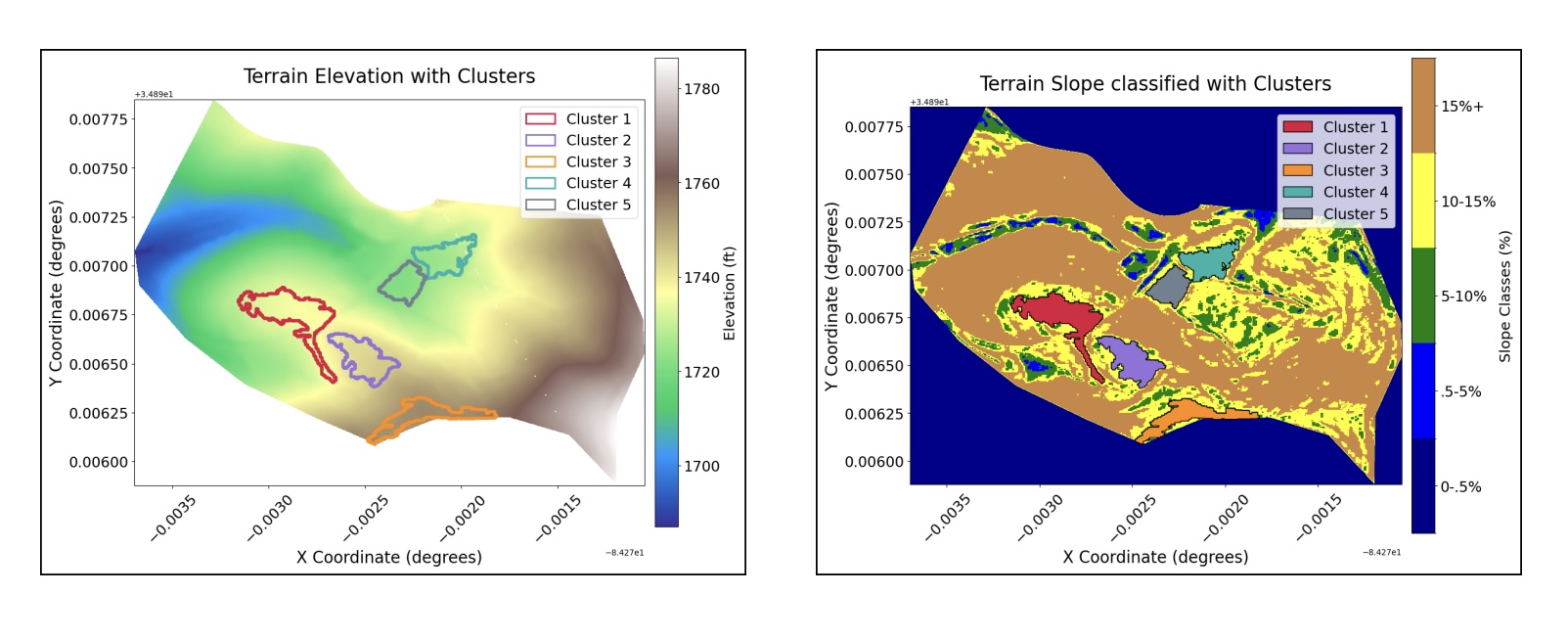
Color-coded maps showing slope intensity and grouped slope percentages, helping you visually identify flatter areas versus steep terrain.

AI-generated clusters highlight the most buildable areas based on slope, allowing you to quickly pinpoint potential construction zones.
What to Look For
- At least 0.25 to 0.5 acres within a cluster for building
- Cluster placement relative to road access
- Percentage of land exceeding 15 percent slope
- Whether cluster size supports your intended use
This report significantly improves your ability to pre-screen properties before visiting in person or hiring professional evaluation.
Slope can make or break a land deal.
A parcel that looks flat at first glance may require significant grading, while another property may contain hidden buildable pockets you would otherwise miss.
By layering Contour Lines, 3D View, and the AI Slope Report, you can move from basic terrain awareness to data-backed buildability insights in just minutes.
Start using these tools inside Land Portal today and evaluate your next property with confidence.